
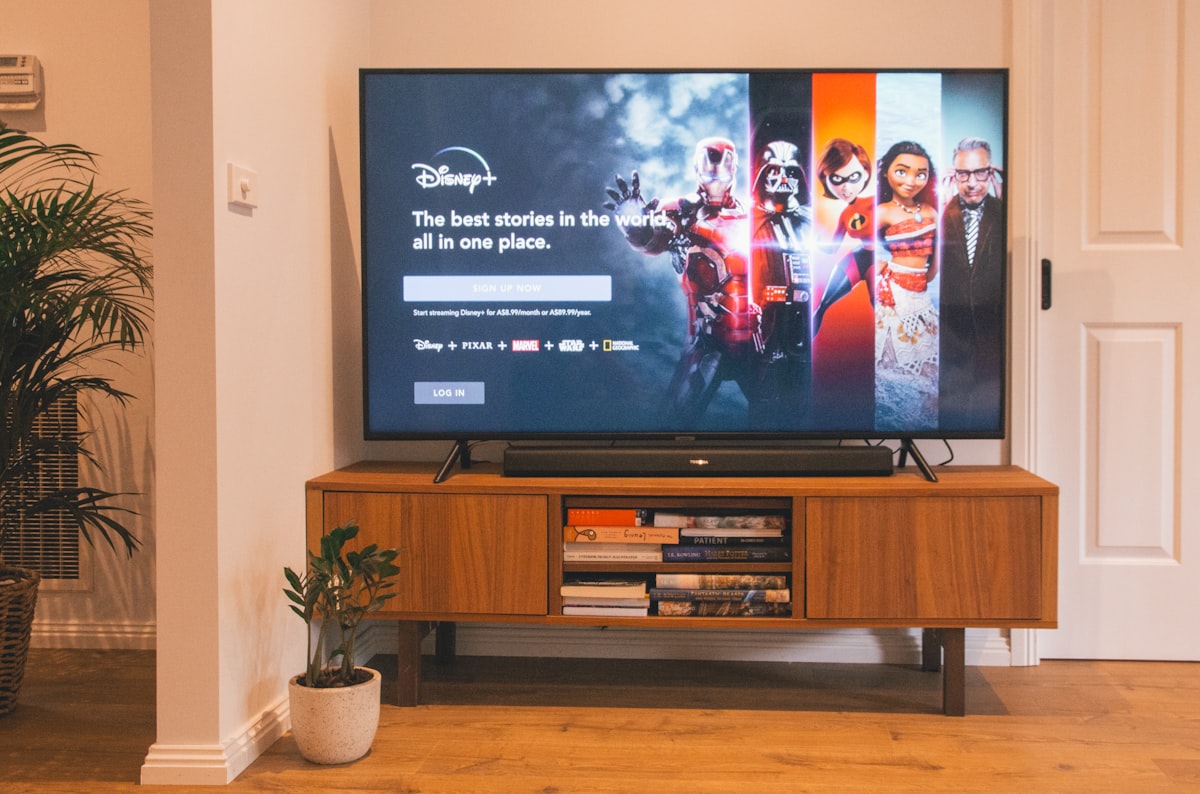
Ready to install Samsung Smart TV apps for Stream TV 8K? This guide walks through setup on Tizen OS, referencing Samsung’s official Smart TV developer docs for platform details.
Stream TV 8K works on Samsung Smart TVs running Tizen OS. Follow this guide for seamless setup.
Works on Samsung Smart TVs from 2016 onwards with Tizen OS installed.
Contact Stream TV 8K support for setup assistance via WhatsApp or live chat.
Some older Tizen versions (2016–2017 models) have a limited app catalog. If “IPTV Smarters” or “TiviMate” doesn’t appear in search, use the Samsung Smart Hub’s regional store setting — switching your Smart Hub country to the US store typically resolves this, since app availability varies by Tizen region.
Tizen OS handles background app memory more aggressively than Android TV. If streams buffer after 20–30 minutes, close other open apps completely (not just minimize) before starting a stream, and confirm your TV is on a 5GHz Wi-Fi band if not using Ethernet.
Double-check there are no trailing spaces in the server URL field — this is the most common cause of login failures on Tizen’s on-screen keyboard, which can auto-insert a space after autocomplete suggestions.
Tizen handles IPTV apps differently from Android TV or LG’s webOS — it’s more restrictive about background processes, which is why the cache-clearing step above matters more on Samsung than on other platforms. If you’re deciding between TV brands specifically for IPTV use, our full installation guide covers setup differences across all major devices.
Yes, a free Samsung account is required to access the Smart Hub app store, separate from your Stream TV 8K subscription.
Very old Samsung TVs (pre-2015) run a different OS and aren’t supported — check your TV’s settings menu for “Tizen” to confirm compatibility.
Yes — new subscriptions include a 7-day money-back guarantee, so you can confirm everything works on your specific TV model before committing.
Ready to get started? View subscription plans or contact support via WhatsApp if you run into any issues during setup.
Setup steps vary slightly by Tizen version. Check yours under Settings > Support > About This TV. TVs from 2020 onward run Tizen 5.5+, which has a more restrictive app-sideloading process than older versions — if your TV is from 2016-2019, the Smart Hub app store method above should work directly without extra steps.
If app installation genuinely won’t work on your specific Tizen version, screen mirroring from a phone or laptop running the IPTV app is a reliable fallback, though it uses more local network bandwidth than a native TV app.
Newer Samsung TVs default to aggressive picture-processing modes (motion smoothing, dynamic contrast) that can actually work against streamed content, introducing artifacts that look like connection issues but are really display settings. Switching to “Movie” or “Filmmaker Mode” in your picture settings often produces a cleaner result for IPTV specifically, since it disables most of this post-processing.
Once you install Samsung Smart TV apps correctly, the rest of the setup takes just a few minutes.
In short: to install Samsung Smart TV apps for Stream TV 8K, use the Smart Hub store or sideload if needed. Once you install Samsung Smart TV successfully, streaming starts right away.
